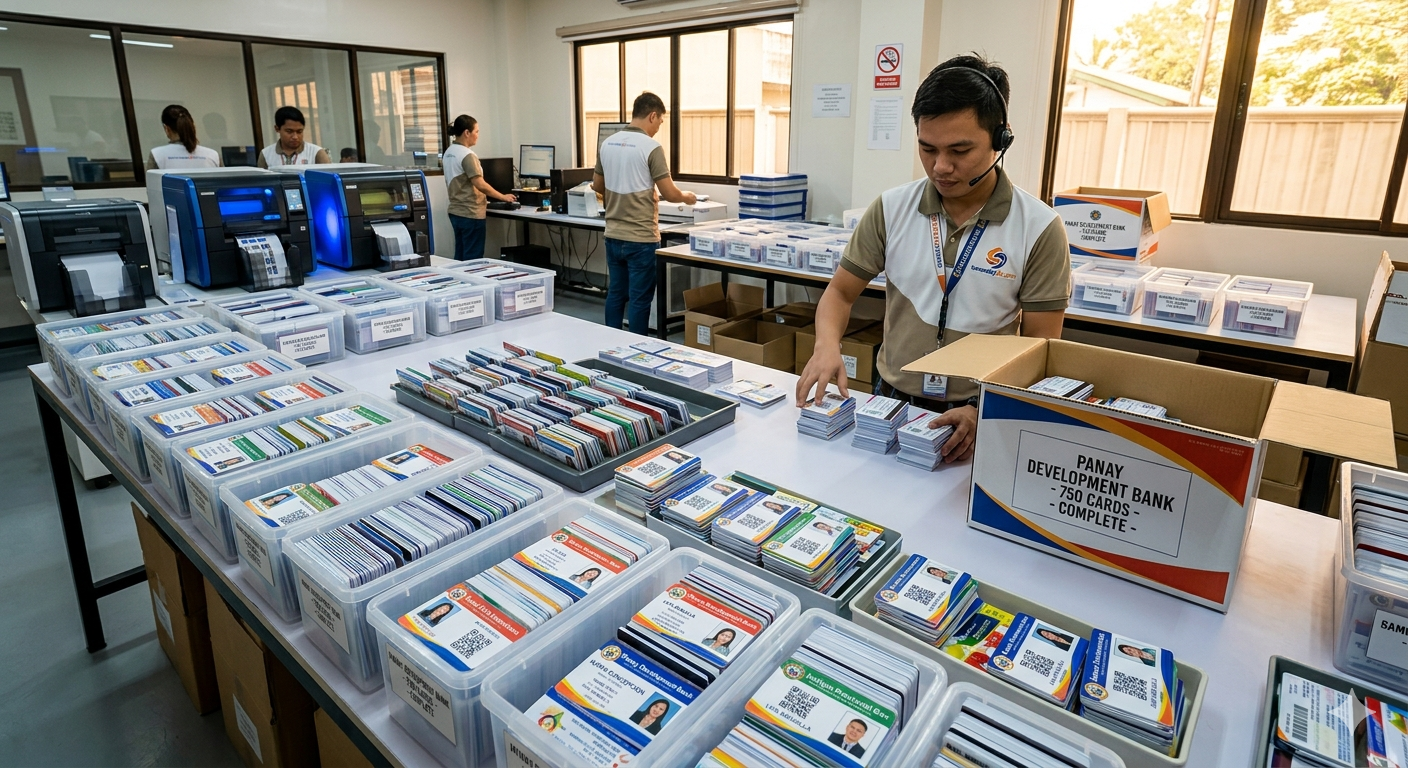
An ID card data spreadsheet has one row per person and one column for each field printed on the card, plus a photo filename that matches each person's image. Clean names, shorten long titles and check the file before ordering, and a large order becomes much easier to print correctly.
Need cards soon? Start your design on the order page. Orders placed before the 1 PM ET cutoff go into same-day production. Shipping time depends on the method you choose at checkout.
We review every order before it prints.
Last updated: November 5, 2026
Why the spreadsheet matters
When you order many cards at once, the spreadsheet is the order. Every name, title and photo on the printed cards comes from it. Small issues such as inconsistent capitalization or a mismatched photo multiply across hundreds of rows. A well-built file saves time and reprints.
Choose your columns
Create one column for each field on the card, in the order they appear: first name, last name, title, department, ID number, location and any role label. Add a column for the photo filename. Avoid merged cells, extra notes in the same column and hidden rows.
Naming photo files
Name each photo with a unique value, such as the employee number or first-last name, and put that exact filename in the spreadsheet. Use one format, such as JPG, and avoid spaces and special characters. Keep all photos in one folder.
Cleaning names
Check capitalization (Maria Lopez, not MARIA LOPEZ), accents and hyphens. Use preferred names where your policy allows. Remove leading and trailing spaces, which can shift text on the card. Sort by last name and scan for duplicates.
Handling long titles and names
Find the longest entry in each column and test it on your template. If it does not fit, agree on abbreviations, such as Sr. for Senior or Mgr. for Manager, and apply them consistently. Very long names may need a two-line layout.
Role labels and colors
If your design uses color bands, add a column for the role and use a fixed list of values, such as Staff, Contractor and Visitor. Spelling the same role two ways can put a card in the wrong color.
ID numbers and barcodes
If cards show an ID number or barcode, store numbers as text so leading zeros are kept. Check that every number is unique. If cards must work with a reader or time clock, contact us before ordering and we'll help you check compatibility.
Checking the file
Before you send it, filter each column for blanks, check that every photo filename has a matching file and spot-check ten random rows against your HR or registration system. Have a second person review the file if the order is large.
Sending the order
Send the spreadsheet, the photo folder and the final design together. A digital proof is optional, but for a large first order it is a useful way to check a few cards. Orders placed before the 1 PM ET cutoff go into same-day production, and shipping time depends on the method you choose at checkout.
Splitting large orders
For very large orders, consider splitting by department, location or role. Smaller batches are easier to check and hand out, and a problem in one batch does not hold up the others. Send each batch with its own spreadsheet and photo folder, using the same column layout.
Common spreadsheet errors
The errors that appear most often are names in the wrong column, auto-corrected text, dates turned into numbers, leading zeros dropped from ID numbers and photo filenames with a different extension than the real file. A quick filter on each column catches most of them.
Protecting personal data
An ID card spreadsheet contains names, photos and sometimes employee numbers. Share it only with people who need it, send it through the ordering process rather than open links and delete local copies you no longer need. Keep the master file in a location with limited access.
A sample column layout
A simple layout that works for most programs is: Employee ID, First Name, Last Name, Preferred Name, Title, Department, Location, Role, Photo File. Keep the header row exactly the same for every order. If a field is not printed on a certain card type, leave the cell blank rather than deleting the column, so every file shares one structure and can be combined later without reworking columns.
Matching photos to rows
Before sending, sort the photo folder by name and compare it to the Photo File column. Count both: the number of photos should match the number of rows that need one. Open a handful of photos at random to confirm they show the right person, are front-facing and are not cropped too tightly. Replace any blurry or dark images now rather than after printing.
Handling late changes
Large orders often get late edits: a new hire added, a name corrected or a person who left. Keep a change log with the date and the row affected, and send an updated file rather than separate emails. One current file is easier for everyone to work from than a list of scattered corrections.
Reusing the file
Save the spreadsheet as a template with the same columns. Future orders, including single replacements, only need a new row. Consistent data keeps every future card matching the first batch.
Related reading
- Start a large order
- how same-day PVC ID printing works
- how to start an employee ID card program
- what to put on an employee ID card
Frequently asked questions
What columns should an ID card spreadsheet have?
One column per printed field plus a photo filename column.
How should I name photo files?
Use a unique value like an employee number and put the exact filename in the spreadsheet.
How do I handle names that are too long?
Test the longest names on your template and agree on consistent abbreviations or a two-line layout.
Why do ID numbers lose leading zeros?
Spreadsheets treat them as numbers. Format the column as text.
Can I see sample cards before the full run?
Yes. A digital proof is optional and can be added to your order.
How long does shipping take?
Shipping time depends on the method you choose at checkout.
Ready to get started?
When your design and names are ready, start your order. Orders placed before the 1 PM ET cutoff go into same-day production, and shipping time depends on the method you choose at checkout. Start your order now
Also see our sister brand WorkIDCard for multi-site employee badge programs.
We review every order before it prints.